

Search
The search box finds stocks, ETFs and futures from one list, best match first. For futures you can type a plain name as well as the ticker:nasdaq finds NQ and MNQ, gold finds GC and MGC, s&p finds ES and MES. Futures show their full contract name, for example “E-mini S&P 500”, not only the root. Type at least two characters of a word for a name match.
A name only finds the instrument it describes. Words such as spx and vix return the futures on that index and label them as futures. They do not return the index itself.
Market overview
The strip at the top of the Scanner shows the index ETFs (SPY, QQQ, IWM) and the index futures (ES, NQ, RTY): last price, change, and the 7-day and 30-day moves. Beside each group is the net options flow and the volatility state, for exampleNormal vol. Futures show No options flow for futures, because the flow is read from listed options on the ETFs. The strip states the time it is as of.
Scanner
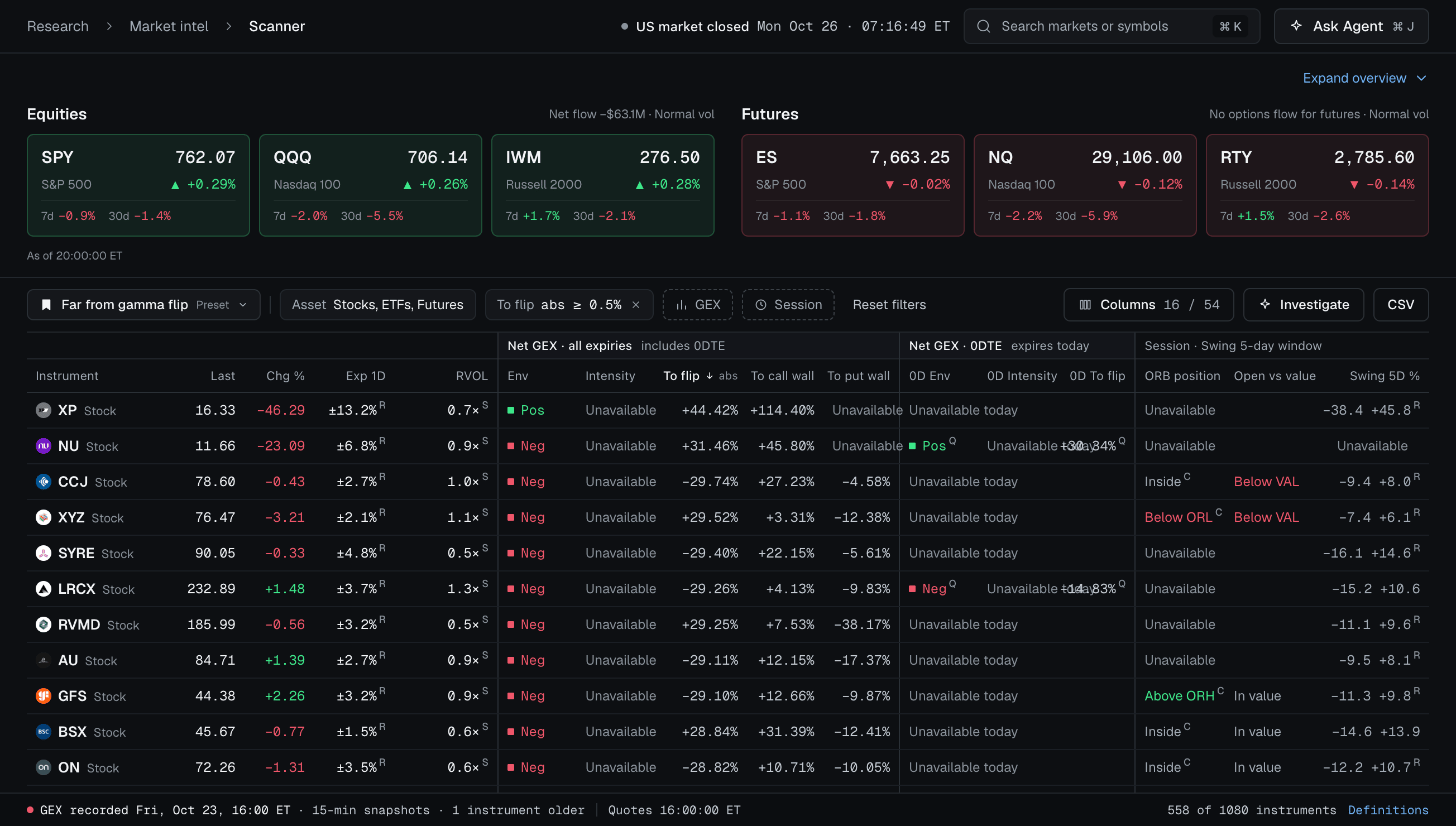
The Scanner: the market overview strip above a table ranked on dealer positioning and session position.
- Presets such as
Far from gamma flipset the filters for you. Reset filters clears them. - Filters cover the asset type (stocks, ETFs, futures), the distance to the gamma flip, the GEX state and the session.
- Columns: last price, change, the expected one-day move (Exp 1D) and its band, relative volume, then net GEX for all expiries (environment, intensity, distance to the flip, to the call wall and to the put wall), the same for options that expire today (0DTE), and the session read (position against the opening range, price against the value area, and the 5-day swing range). Choose which columns to show with Columns.
- A value that cannot be known shows
Unavailableand the reason, never a blank or an old number. - Intensity ranks today’s net GEX against the ticker’s own past readings, from 0 to 100. A ticker with at least 60 sessions of history gets the full measure. One with 10 to 59 is ranked over the sessions we hold and carries a small P mark; hover it to see how many sessions the rank rests on. Below 10 sessions it shows
Unavailablewith the reason. 0DTE intensity is not shown, because no 0DTE history is kept. - CSV downloads the table. Investigate sends rows to the Agent: the rows you selected, or with no selection the top 50 rows of the current sort and filters. When the table has more, a note tells you it is sending the top 50 of the total.
- The Scanner reads each ticker’s GEX from the same 15-minute snapshot the GEX page shows, so both give the same snapshot and the same time. The net, flip and walls are the values stored for that snapshot. The GEX page can recompute the net and flip from the strike detail, so the two can differ in the last digits, and the GEX page says so where they do.
- The footer states the GEX time, taken from the oldest snapshot among the rows, with its age, and how many instruments match. One old snapshot therefore makes the footer older instead of hiding behind the newer ones.
- GEX from a stored level only. For a ticker that has no stored option chain or strike data, the Scanner shows the net GEX and walls as stored. It shows no gamma flip and no nearest-level distance, ranks it by neither, and says why in the cell. A ticker with no GEX in the last 7 days shows
Unavailablewith the reason.
Expected move, band and Held 20d
- Exp 1D is one standard deviation of a day’s move in percent. It comes from the 30-day at-the-money implied volatility where an options chain is stored. Where none is, it comes from the 20-day realized volatility and carries an R mark, so you never read a realized figure as an implied one.
- 1D expected band is the prior close plus and minus Exp 1D, shown as low to high. It carries the same R mark when realized volatility stands in.
- Held 20d counts the sessions, out of the last 20, that closed inside that day’s expected band. It uses implied volatility where a chain is stored, and otherwise 20-day realized volatility, marked R. A session with no volatility reading to price it is left out, so the count can read
14/18rather than out of 20. At least 15 of the 20 sessions must be priced for the count to show. - When a cell cannot be filled, it shows
Unavailableand hovering it gives the reason in words, such as how many daily closes are held against how many are needed.
GEX
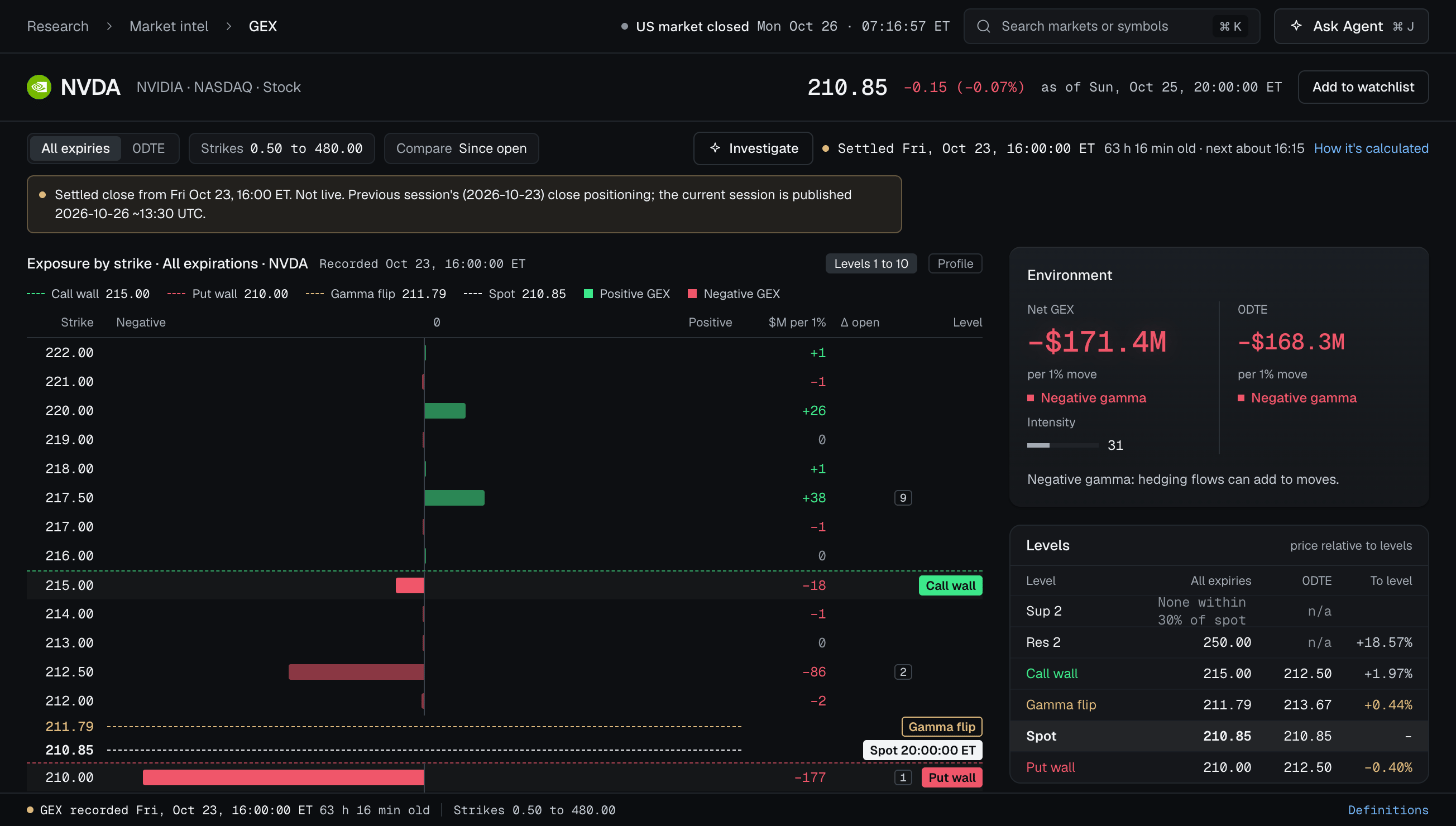
GEX for one ticker: exposure by strike with the call wall, put wall, gamma flip and spot, and the environment and levels panels.
- Switch between All expiries and 0DTE, change the strike range, Compare with another reading, and see the change Since open.
- The chart shows exposure by strike in millions of dollars per 1% move, with the call wall, put wall, gamma flip and spot marked. Calls count positive and puts negative.
- The Environment panel gives the net GEX, says how it is measured (the sum over every strike and expiry) and gives a plain reading, for example negative gamma, where hedging flows can add to moves. The Levels panel lists support, resistance, the walls, the flip and spot with the distance of price to each.
- The ten strikes with the largest exposure are ranked, and Δ open shows how each changed.
- The page says when the reading was recorded, how old it is and when the next one is due. After the close it shows the settled close and says it is not live. How it’s calculated states the method, the formula and the kind of source. Where the stored snapshot figure is measured differently from the net shown on the page, it shows both and says why they differ.
Options flow
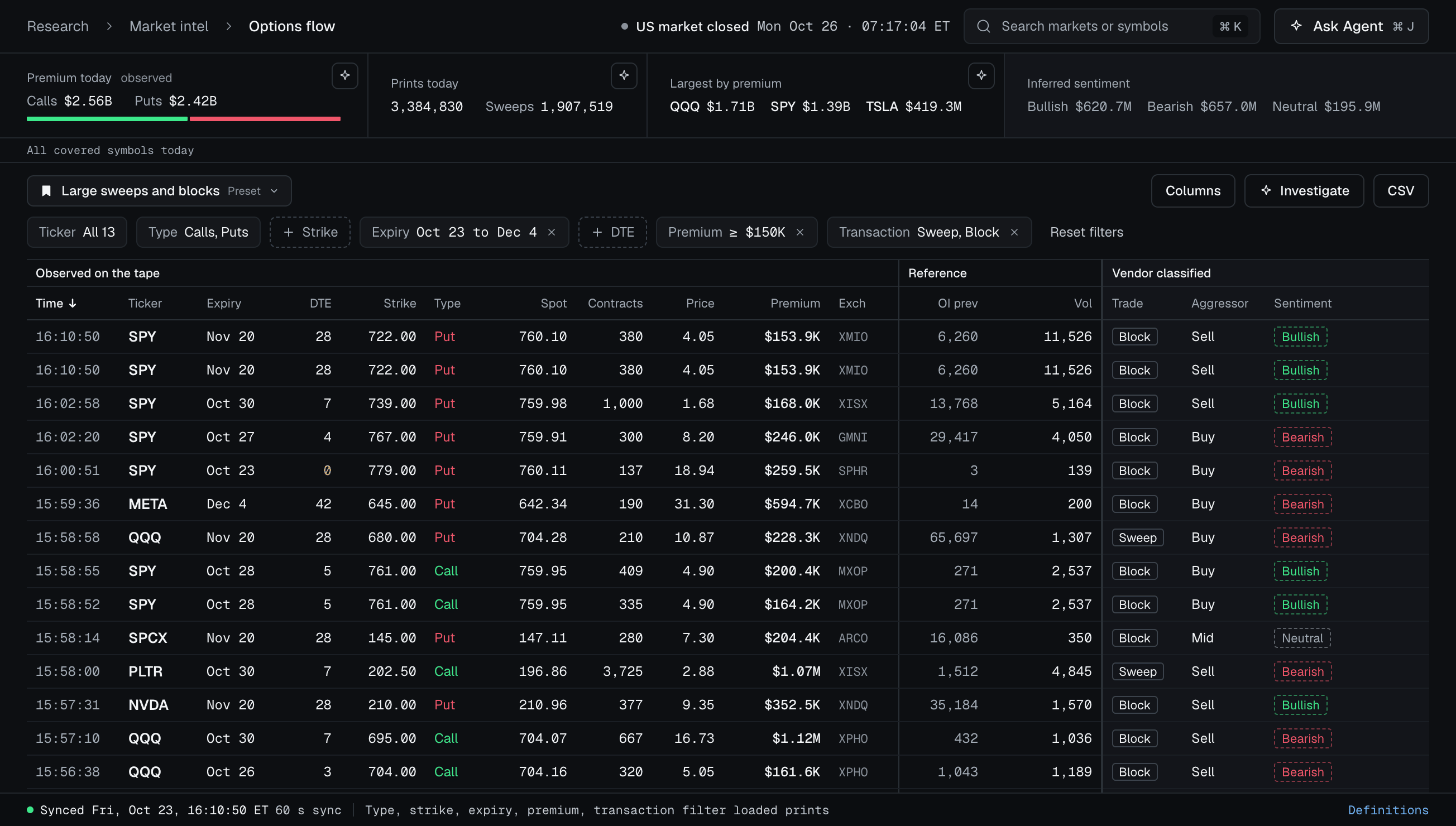
Options flow: today's premium summary above a table of large sweeps and blocks.
- The summary shows one session’s premium for calls and puts, the number of prints and sweeps, the largest tickers by premium and the premium classified as bullish, bearish and neutral. It covers today’s New York session. Before the open, or on a weekend, when nothing has printed yet, it shows the last session with prints and names that day (for example
Fri, Oct 23) instead of calling it today. - The table lists each trade: time, ticker, expiry, days to expiry, strike, type, underlying price, contracts, price, premium, exchange, prior open interest, volume, trade type and aggressor.
- Filter by ticker, call or put, strike, expiry, days to expiry, premium and transaction type (sweep or block).
- Observed and inferred are separated. The columns for what happened on the tape (time, size, price, premium) are observed. The Sentiment column is a classification of the trade, not a fact about who traded or why, and the legend marks which columns are observed, which are reference data and which are classified. When a summary cannot be computed it says so.
Calendar
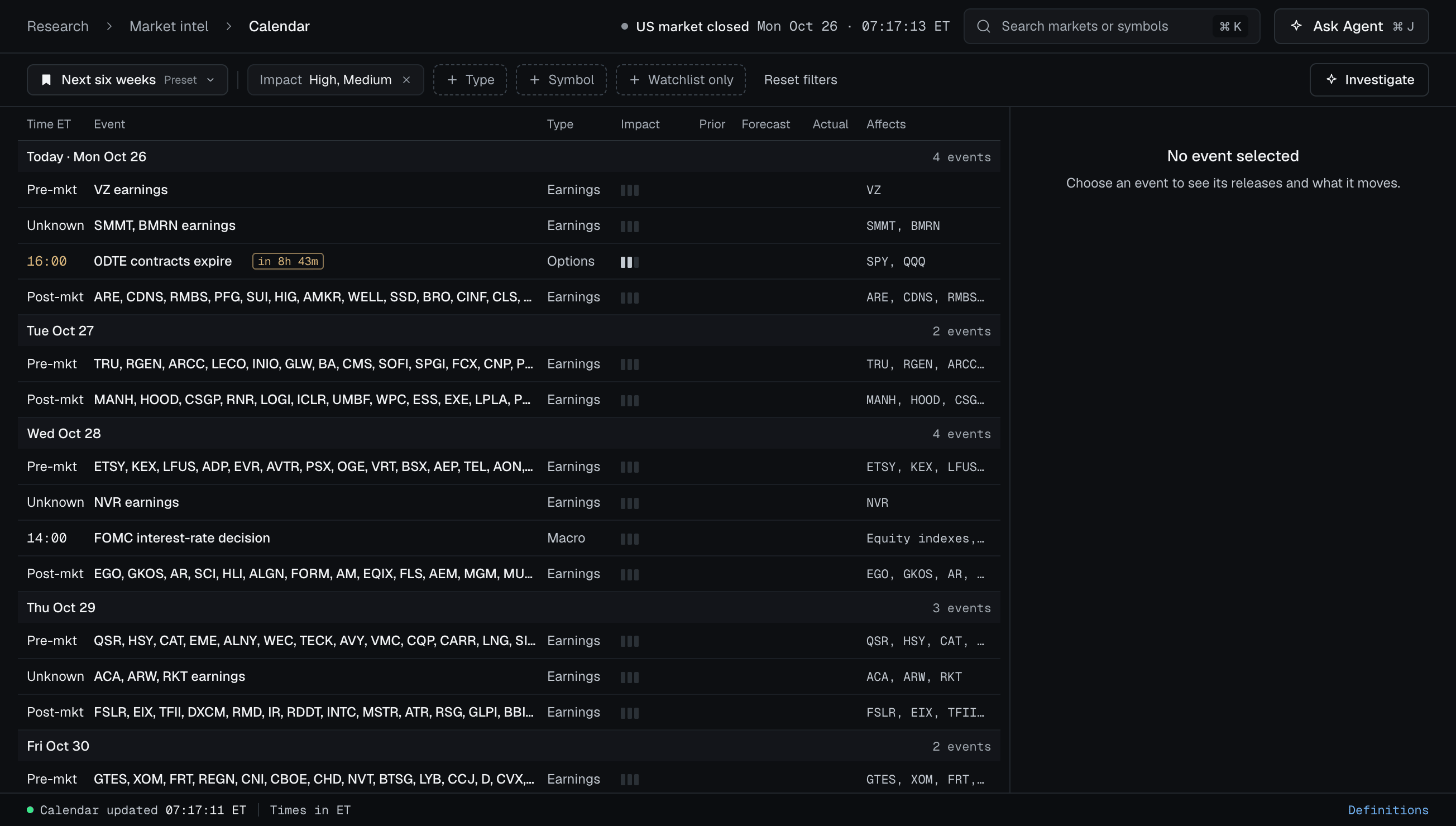
The Calendar: the next six weeks of earnings, releases and option expiries.
- Filter by impact, event type or symbol, or show Watchlist only.
- Each row shows the time in ET, the event, its type, impact, prior, forecast and actual values where they apply, and the tickers it affects. Select a row to see its releases and what it moves. The footer says when the calendar was last updated.